
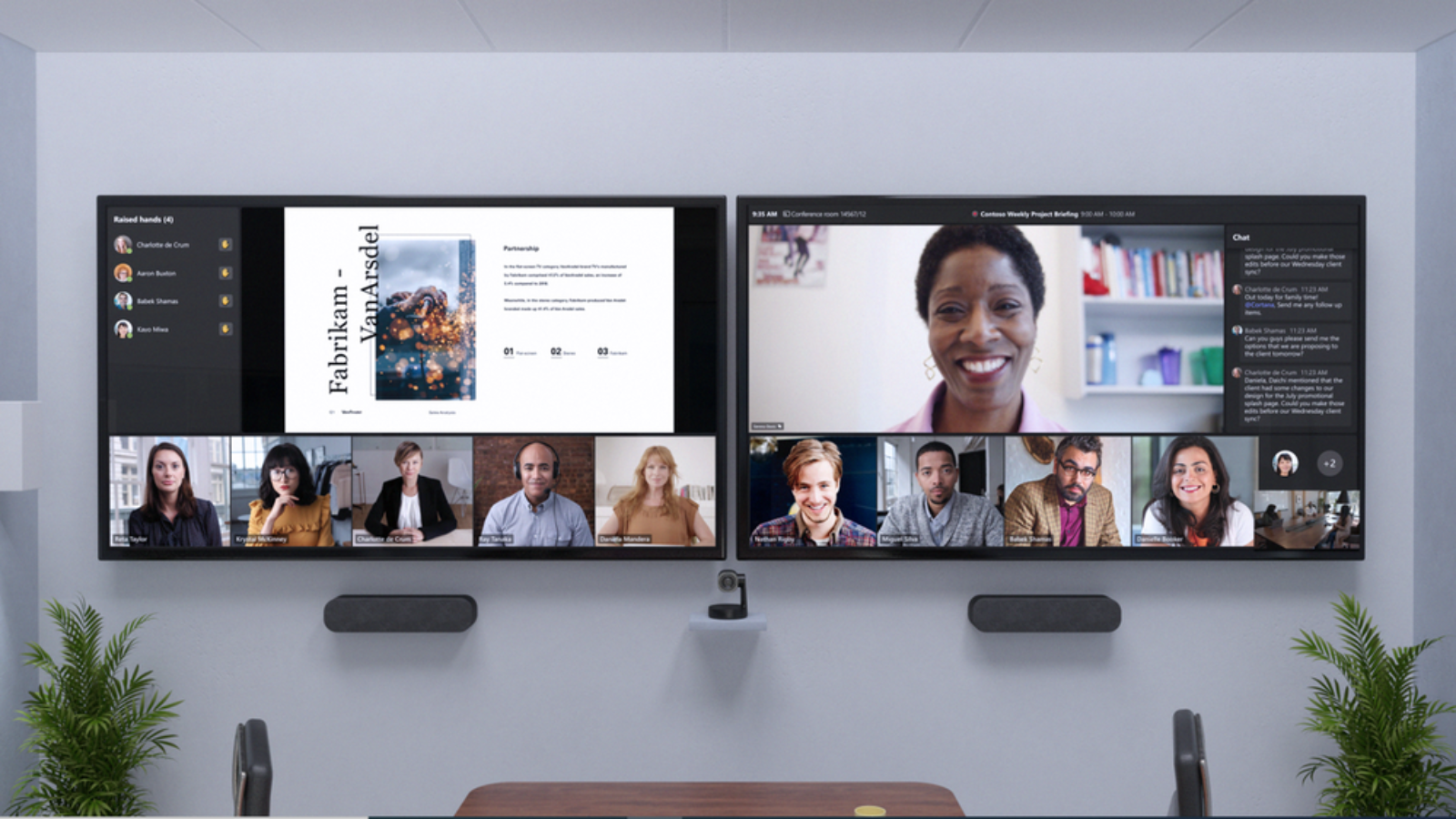
Using Microsoft Teams Rooms offers several advantages that enhance collaboration and streamline communication in hybrid work environments:
- Seamless Integration: Microsoft Teams Rooms integrates effortlessly with Microsoft 365, allowing users to schedule and join meetings directly from their calendars.
- High-Quality Audio and Video: Equipped with advanced audio and video technology, Teams Rooms ensure clear communication and a more immersive meeting experience, reducing issues related to sound and visuals.
- Easy-to-Use Interface: The user-friendly interface allows participants to join meetings with a single touch, minimizing technical difficulties and encouraging greater participation.
- Flexible Setup: Teams Rooms can be configured for various room sizes and layouts, making them suitable for small huddle spaces to large conference rooms.
- Enhanced Collaboration Tools: Features like screen sharing, digital whiteboards, and file sharing facilitate real-time collaboration, improving productivity and engagement among participants.
- Accessibility for Remote Participants: Teams Rooms make it easy for remote participants to join meetings, fostering inclusivity and ensuring everyone can contribute regardless of location.
- Centralized Management: IT departments can manage and monitor all Teams Rooms from a centralized dashboard, simplifying maintenance and troubleshooting.
- Improved Meeting Efficiency: Features like meeting reminders and the ability to join with a single click help keep meetings on track and ensure they start on time.
- Security and Compliance: Leveraging Microsoft’s robust security features ensures that data shared during meetings remains protected, complying with organizational policies and regulations.
- Scalability: As organizations grow, Microsoft Teams Rooms can scale accordingly, allowing for easy additions of new rooms and features without significant investment in new infrastructure.
These advantages make Microsoft Teams Rooms an effective solution for enhancing communication and collaboration in today’s diverse work environments.
Setting up a Microsoft Teams Room involves several key steps to ensure a seamless meeting experience. Here’s a guide to help you through the process:
1. Choose the Right Hardware
- Select Devices: Choose compatible hardware such as a Microsoft Teams Room-certified console, camera, microphone, and speakers. Ensure the equipment is suitable for your room size.
- Display: Use one or more displays to show video feeds and shared content.
2. Prepare the Room
- Layout: Arrange furniture to create a conducive meeting environment. Ensure all participants can see the screens and hear the audio clearly.
- Internet Connection: Ensure a stable internet connection, ideally through wired Ethernet for better reliability.
3. Install the Software
- Windows OS: Install Microsoft Teams Rooms on a dedicated Windows PC or use an all-in-one device that comes pre-installed.
- Updates: Ensure that all software is up to date to access the latest features and security improvements.
4. Configure Microsoft Teams Rooms
- Sign In: Use an Office 365 account associated with your organization to sign into the Microsoft Teams Room device.
- Room Settings: Configure room settings via the Teams admin center, including room name, calendar settings, and other preferences.
- Device Settings: Adjust audio and video settings as necessary, ensuring optimal performance.
5. Connect Peripheral Devices
- Audio/Video Equipment: Connect cameras, microphones, and speakers to the main device. Ensure they are properly recognized by the system.
- Control Device: Set up the Teams Room console to manage the meeting experience, including volume control and camera settings.
6. Test the Setup
- Run a Test Meeting: Conduct a test meeting to verify audio and video quality, connectivity, and overall functionality.
- Adjust Settings: Make any necessary adjustments based on feedback during the test meeting.
7. Train Users
- Provide Training: Offer training sessions to users to familiarize them with scheduling and joining meetings using the Teams Room system.
- Create Guides: Develop quick reference guides to assist users in troubleshooting common issues.
8. Monitor and Maintain
- Regular Maintenance: Schedule regular checks and updates for the hardware and software to ensure continued performance.
- Support: Establish a support plan for users encountering technical issues.
By following these steps, you can successfully set up a Microsoft Teams Room that enhances collaboration and communication in your organization.
Please get in touch with us to discuss your next collaboration room project by clicking here
You can also learn more about the Teams room from the Microsoft site
